The LinkedIn integration lets you use Nuvia to send prospecting campaigns through LinkedIn, import profiles and enrich contact data. This guide shows how to connect your LinkedIn account to the platform.
Available on: all plans.
Who can do it: administrators.
What you need before you start
-
Administrator access to Nuvia
-
An active LinkedIn account (recommended: LinkedIn Sales Navigator for advanced search features)
Step 1 – Open the integrations screen
-
Click your profile icon in the bottom-left corner of the sidebar
-
Select Integrations
-
On the integrations screen, find LinkedIn
Step 2 – Start the integration
-
Click Manage on the LinkedIn card
-
Follow the authentication instructions shown on the screen
-
Authorize Nuvia to access your LinkedIn account when prompted
-
Once authentication is complete, LinkedIn should show the Manage button with a green check icon, meaning the connection was established
Step 4 – (Optional) Set the invitation cleanup period
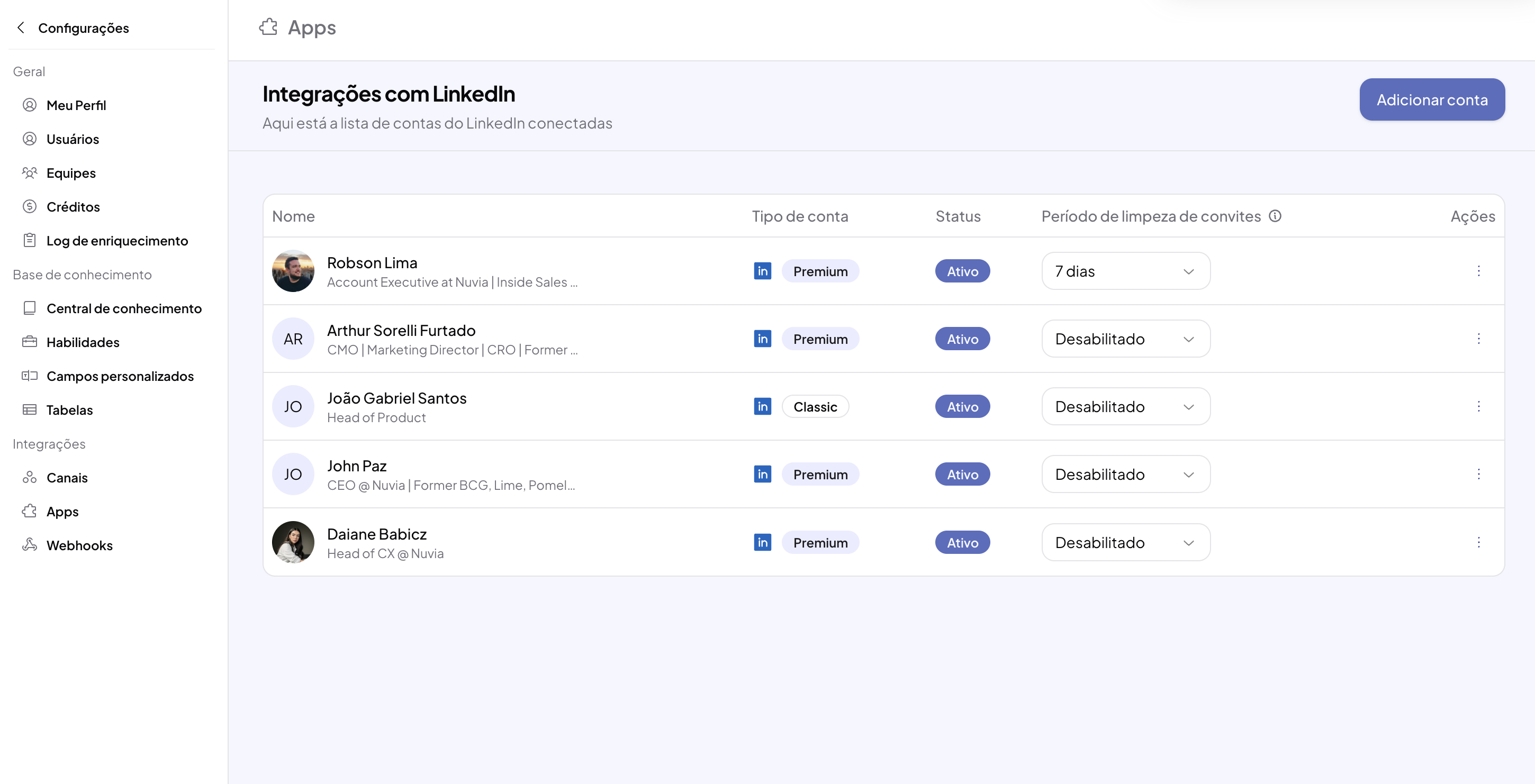
Each connected LinkedIn account shows the Invitation cleanup period column in the Integrations > LinkedIn table. This period controls when sent invitations that haven't been accepted yet are automatically closed in the contact's journey, freeing the lead for the next campaign step.
-
Go to your profile icon > Integrations > LinkedIn card > Manage
-
Find the account in the table
-
In the Invitation cleanup period column, choose one of the options:
-
Disabled (default) – pending invitations keep waiting indefinitely
-
7, 14, 21, 30, 60 or 90 days – invitations sent longer ago than this period are closed automatically
-
-
Your choice is saved right away – you'll see the message “Cleanup period updated”