
LinkedIn imposes volume restrictions to protect its users' experience. Nuvia applies internal limits and human-like pacing so your campaigns run safely, without exposing your account to blocks.
Available on: All plans
Who it's for: Campaign managers
How LinkedIn sets its limits
LinkedIn doesn't publish the exact numbers of how many invitations or messages an account can send. Limits are dynamic and depend on the account's reputation: age, number of connections, invitation acceptance rate and spam reports. Older, more active accounts tend to have more generous limits; new accounts, lower limits.
The limit that matters most in practice is invitations per week, counted over a rolling 7-day window (it doesn't reset every Monday). Market estimates in 2026 point to something between 100 and 200 invitations per week for established accounts, with a much lower daily cap before LinkedIn starts holding back sends.
Nuvia works with values below these caps and applies human-like pacing to reduce the risk of restrictions.
Connection invitation limits
| Limit | Values | Note |
|---|---|---|
| Invitations per hour | 20 (rolling 1-hour window) | Spread across the hour to avoid bursts |
| Invitations per day | 75 (rolling 24-hour window) | Daily cap; in practice the weekly limit is usually reached first |
| Invitations per week | 150 (rolling 7-day window) | The main limit in practice, with a margin below the caps LinkedIn tolerates |
| Invitation note | Up to 300 characters (paid accounts only) | Optional text. Only available on Premium, Sales Navigator or Recruiter accounts; free (classic) accounts don't send a note. |
What happens when the limit is reached
-
Pending invitations are queued and sent when the time window renews.
-
The campaign isn't paused; only invitation sends are automatically postponed.
-
Messages to contacts who are already connected continue normally.
-
The weekly limit uses a rolling 7-day window: it doesn't reset on Monday, but 7 days after each send.
Direct message limits
Direct messages (to existing connections) follow different rules from invitations:
| Rule | Values | Note |
|---|---|---|
| Messages per hour | 40 (rolling 1-hour window) | – |
| Messages per day | 100 (rolling 24-hour window) | In line with the pace recommended by the integration |
| Recipient | 1st-degree connections only | You can't send a direct message to someone who isn't a connection yet |
| InMail | Not supported | Nuvia only works with organic messages via Unipile |
Pending invitations and sending pace
Besides volume limits, two other factors control a campaign's real speed: how many invitations are sitting there waiting for a reply, and the interval between one action and the next.
Limit on pending invitations without a reply
| Limit | Value | What happens |
|---|---|---|
| Invitations awaiting acceptance | 100 per account | When this total is reached, the account stops sending new invitations until some of them are answered (or closed by automatic cleanup) |
Pace between actions
Nuvia inserts variable pauses between actions to simulate human behavior and avoid patterns LinkedIn associates with automation:
| Action | Interval | Note |
|---|---|---|
| Between one invitation/message and the next | 1 to 3 minutes (randomized) | Randomizing avoids an always-identical interval, which is one of the easiest signs of automation |
| Between visiting the profile and sending the invitation | 40 seconds to 2 minutes | Mimics the time someone takes to read a profile before deciding to connect |
| Checking whether pending invitations were accepted | Once per hour | Uses the same pace as invitations; the more pending invitations, the more of this pace is spent checking instead of sending |
Sending window: default and exception
By default, every LinkedIn campaign respects business hours:
| Rule | Value |
|---|---|
| Sending window | 8 a.m. to 6 p.m., Brasília time |
| Sending days | Monday to Friday (no sends on weekends) |
What Nuvia supports on LinkedIn
| Status | Action / Feature | Behavior in Nuvia |
|---|---|---|
| ✅ | Connection invitation | Sent within the managed limits, with a profile visit first |
| ✅ | Direct message | To 1st-degree connections, via organic message |
| ✅ | Profile visit | Automatic, before each invitation or message |
| ⚠️ | Invitation note | Optional and recommended (up to 300 characters). Only available on Premium, Sales Navigator or Recruiter accounts; free accounts don't send a note. |
| ❌ | InMail (paid message) | Not supported; Nuvia only uses organic messages via Unipile |
| ❌ | Message to a non-connection | Not possible without a 1st-degree connection |
Human-like pacing
Nuvia uses human-like pacing to protect your LinkedIn account from blocks:
| Mechanism | How it works |
|---|---|
| Random intervals | Between each action (visit, invitation, message), Nuvia inserts a random delay that simulates human behavior |
| Automatic daily limits | The volume of actions per day is controlled automatically, respecting the account's limits |
| Spread throughout the day | Actions are spaced out during working hours, with no bursts |
| Respect for business hours | By default, actions happen between 8 a.m. and 6 p.m., Monday to Friday |
Profile visits
The profile visit is the first action before sending an invitation or message. Nuvia automatically visits the contact's profile before interacting, simulating the natural behavior of someone who looks at a profile before reaching out.
-
The contact may see that someone visited their profile (depending on their privacy settings).
-
Profile visits tend to increase the acceptance rate of invitations.
Automatic cleanup of pending invitations
Sent connection invitations can stay pending for days or weeks and, in most cases, never get a reply. Nuvia offers automatic cleanup that closes old invitations in the contact's journey, freeing the lead for the next step of the campaign.
How to set it up
-
In the sidebar, click the three profile dots
-
Select the “settings” option
-
In the sidebar, open the “apps” option
-
Click the LinkedIn card
-
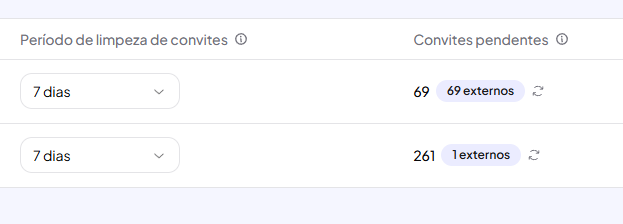
Find the Invitation cleanup period column
-
Set the cleanup period
How it works in practice
The invitation still exists on LinkedIn (Nuvia doesn't withdraw it on the network). We just stop waiting for a reply, and the contact moves to the next step of the campaign (or can be approached again in another one). LinkedIn isn't notified of the closing.
| Option | What happens |
|---|---|
| Disabled (default) | Pending invitations keep waiting indefinitely; no automatic closing |
| 7, 14, 21, 30, 60 or 90 days | Invitations sent longer ago than the chosen period are automatically closed in the contact's journey |
Track pending invitations per account
On the same LinkedIn integration screen, each connected account has a Pending invitations column that shows how many invitations are still awaiting a reply, adding up the ones sent by Nuvia and the ones sent outside it (manually by you or by other tools).
Invitations sent outside Nuvia also use your LinkedIn account's limit. If the account is blocking sends but Nuvia's numbers look low, this column reveals the external invitations taking up the quota (explaining blocks you wouldn't see by looking only at our sends).
Quota distribution between campaigns in the same inbox
When two or more LinkedIn campaigns share the same inbox (the same connected account), Nuvia distributes the daily send quota proportionally between them, instead of using up the quota on the first campaign it finds.
In practice: if you have campaign A with 500 pending leads and campaign B with 50 pending leads in the same inbox, campaign A gets about 10x more sends per cycle. But campaign B doesn't sit idle; it gets its proportional share and alternates with A in the queue.
Best practices
| Practice | Why |
|---|---|
| Keep volume moderate | Accounts with very high invitation volumes get flagged by LinkedIn |
| Personalize invitation notes | Invitations with a custom note have a higher acceptance rate and get fewer reports (requires a paid account) |
| Segment the audience | Sending invitations only to truly relevant profiles reduces rejections |
| Use an active, mature account | Accounts with more connections, history and activity have more generous limits |
| Alternate with other channels | Multichannel campaigns (WhatsApp + LinkedIn) reduce the pressure on a single channel |
Risks to avoid
| Risk | Consequence |
|---|---|
| Excessive invitation volume | Temporary account restriction (sending blocked for days or weeks) |
| Many rejected invitations | LinkedIn lowers the account's invitation limit |
| Generic mass messages | Spam reports, which can lead to restriction |
| New account with high volume | Recent accounts have lower limits; scale up gradually |
LinkedIn vs WhatsApp for campaigns
| Aspect | ||
|---|---|---|
| First contact | Requires a connection invitation (or already being a connection) | Requires an HSM template approved by Meta |
| Personalization | Free text (note of up to 300 characters in the invitation, paid accounts only; up to 8,000 characters in the message) | Template with mapped variables |
| Limits | 75 invitations/day and 150/week, managed automatically | Daily limit by tier (from 1,000 to unlimited), based on account quality |
| Pacing | Human-like, with random intervals | Sequential, with a configurable delay |
| Media types | Text only | Text, images, documents and audio |
| Best for | B2B prospecting, C-level decision makers, professional outreach | Fast communication, high volume, customer service |
| Main risk | Account blocked for excessive volume | Number blocked for low quality |