
Welcome to Nuvia! This is your starting point to understand all the modules available on the platform and how to navigate them.
Nuvia brings your entire Go-To-Market cycle into a single environment: from finding qualified leads to automating outreach and qualification, following conversations, and analyzing results in real time.
Nuvia modules
Each module solves a specific challenge in your sales process. Check the table below or go straight to each section through its links.
1. Search
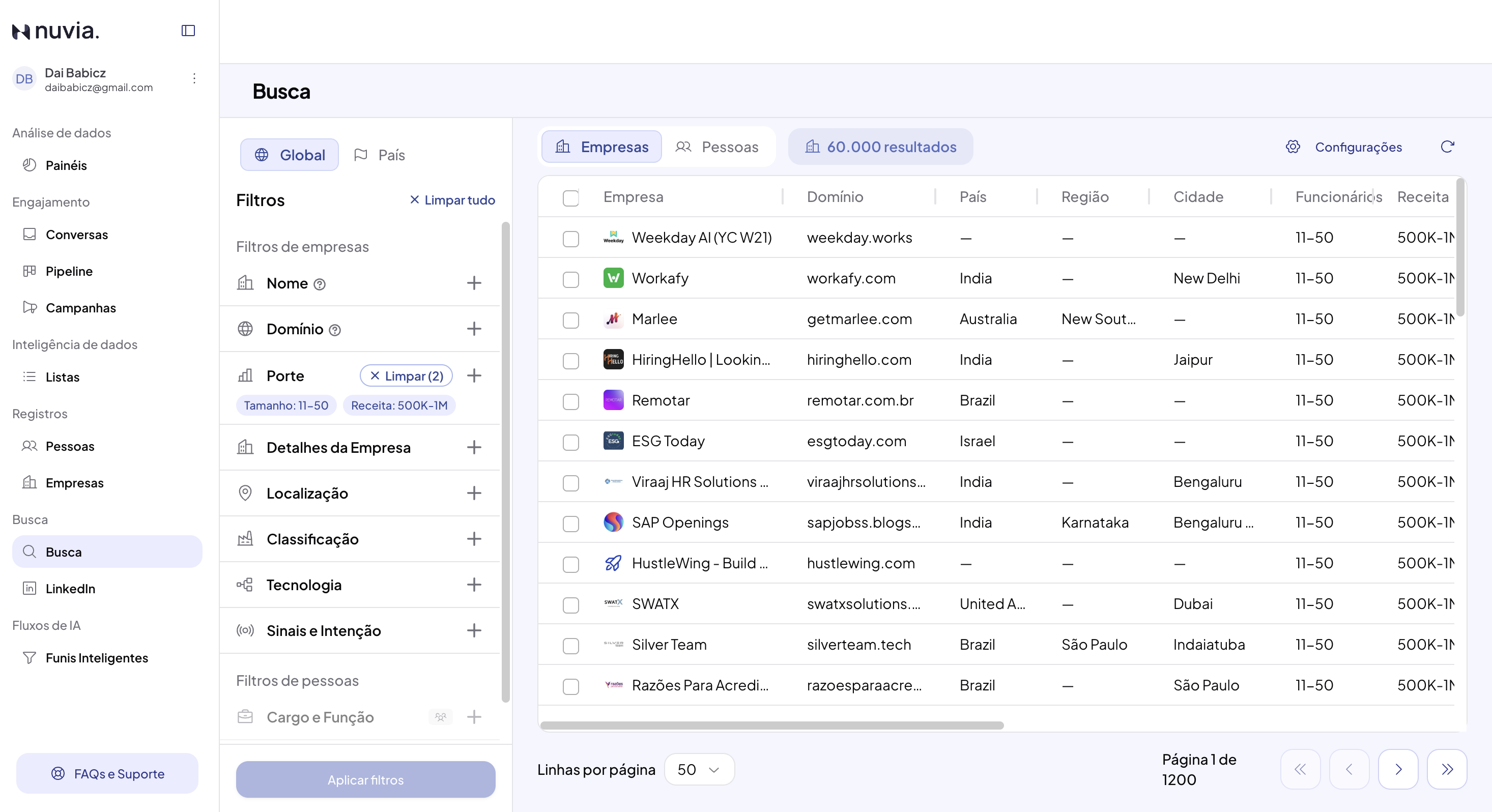
What it does: outbound prospecting engine that lets you find people and companies using structured filters (job title, location, industry, size) combined with online search using Google, NAICS, and more.
Who it's for: SDRs and BDRs who need to build qualified prospecting lists quickly.
Result: prospectable contacts ready to add to campaigns.
2. Lists and Objects
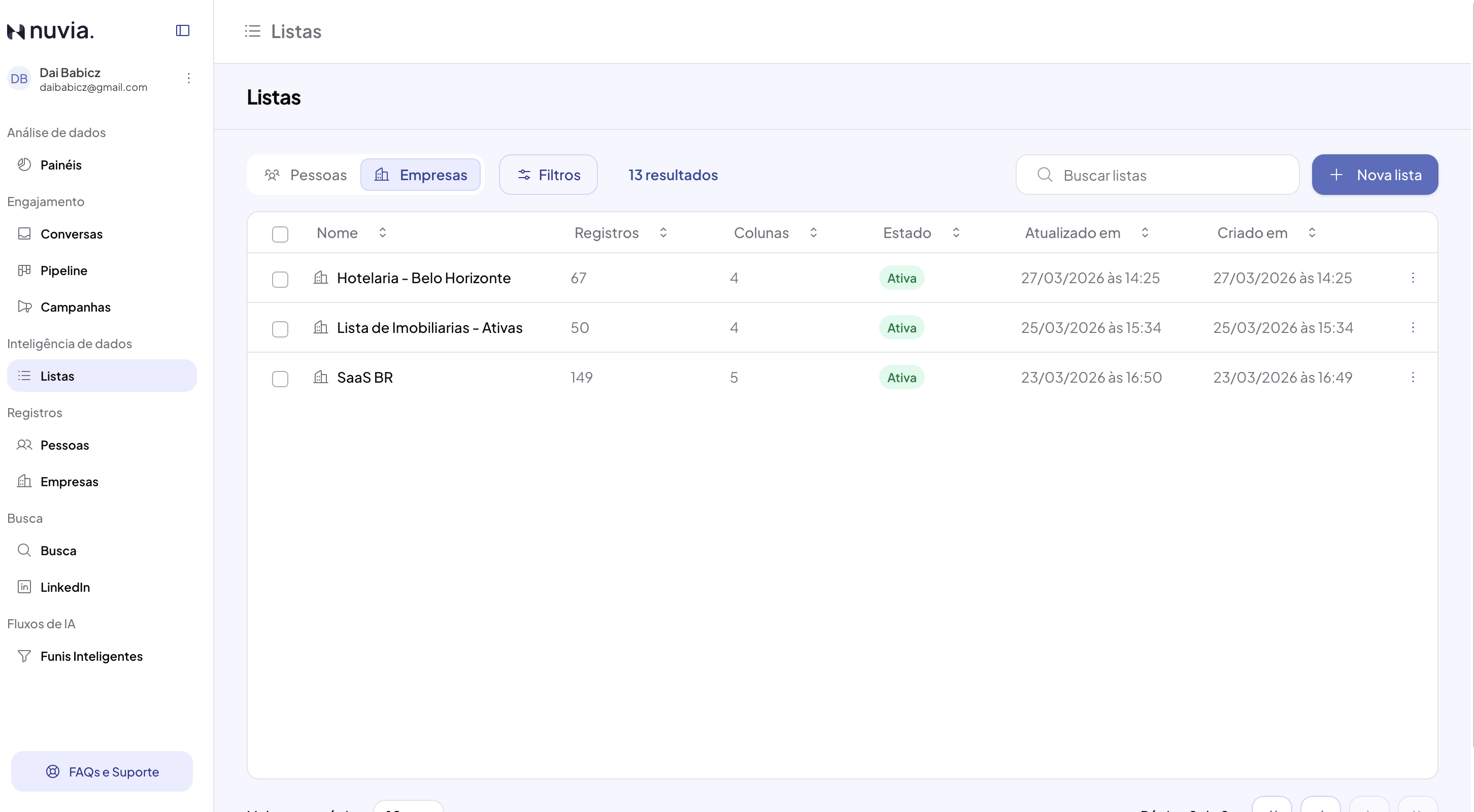
What it does: centralized management of contact bases. Lists are static (imported via CSV or captured manually through the search module); Objects are contacts or companies inside a list.
Who it's for: Sales Ops, RevOps, and managers who need to organize audiences and keep data clean.
Result: structured databases you can reuse in campaigns and funnels.
3. Campaigns
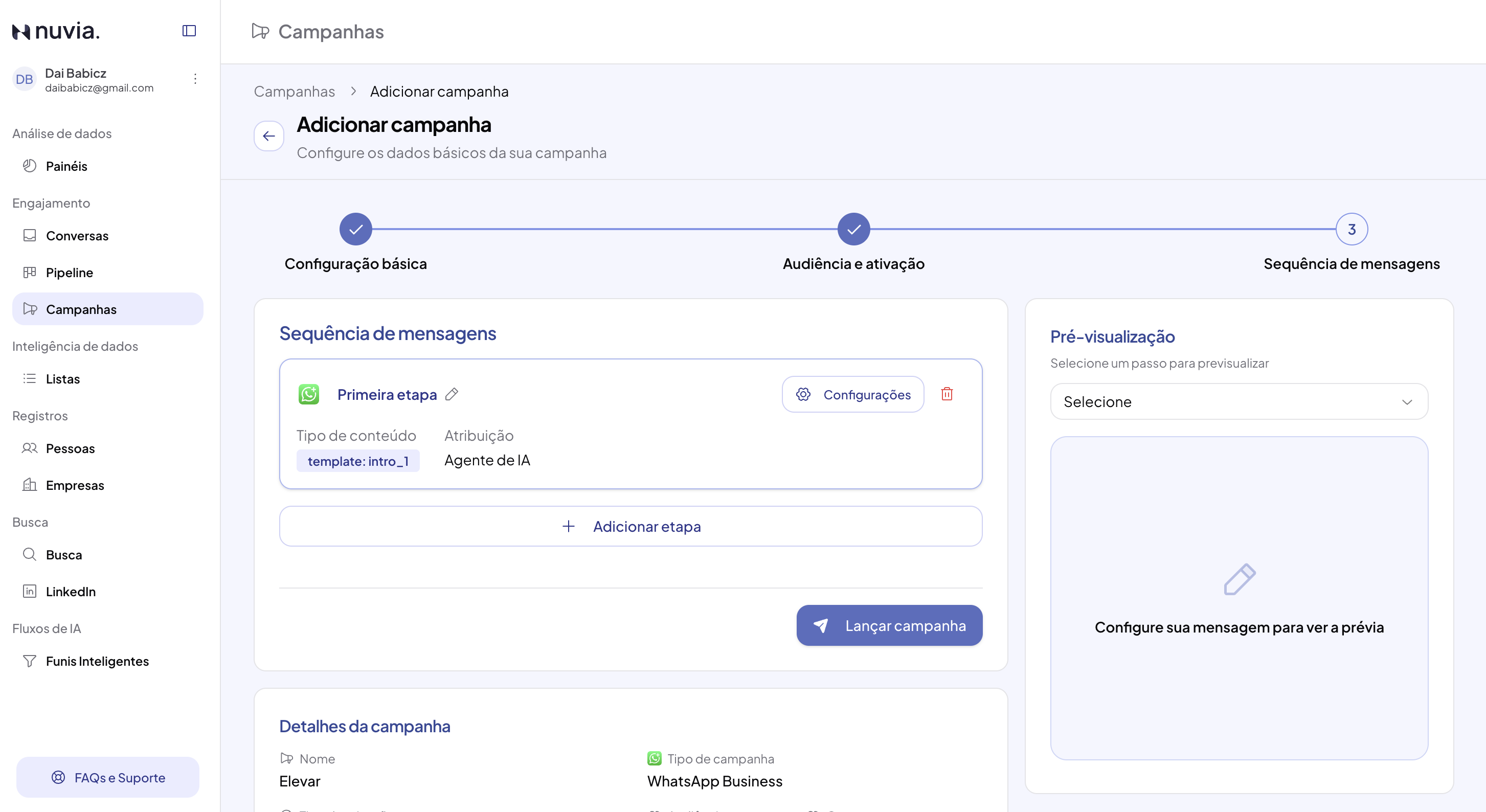
What it does: segmented WhatsApp and LinkedIn sends in sequential steps with configurable intervals.
Who it's for: outbound teams, SDRs running cadences, and lead qualifiers.
Result: engaged contacts, with delivery, open, and reply tracking.
4. Smart Funnels
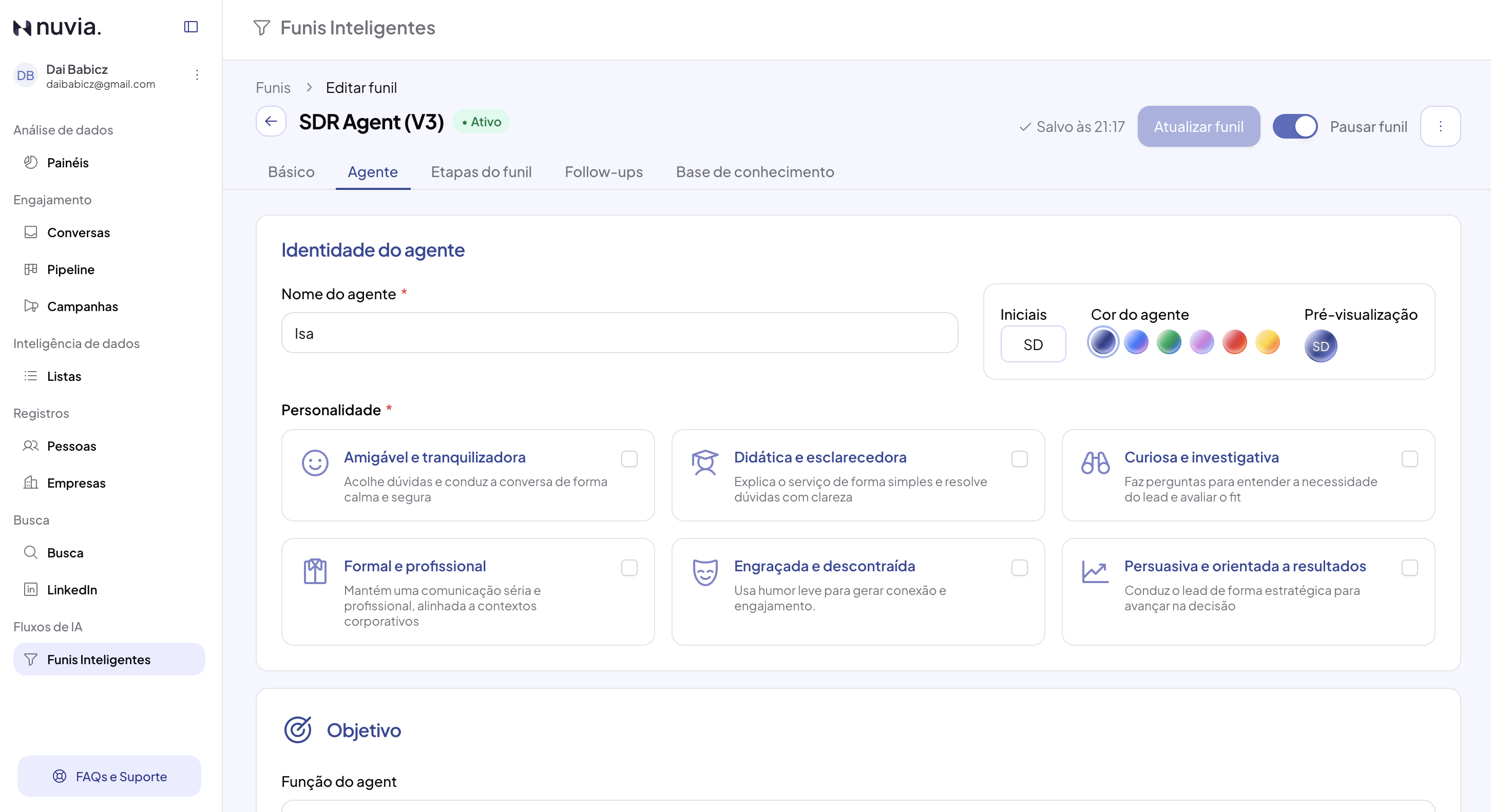
What it does: AI agents that run complete conversations on their own. They qualify leads, answer questions, book meetings, and transfer to human agents at the right moment.
Who it's for: operations managers, qualification specialists, and sales teams that want to automate the top of the funnel.
Result: leads qualified automatically, 24/7, without constant human intervention.
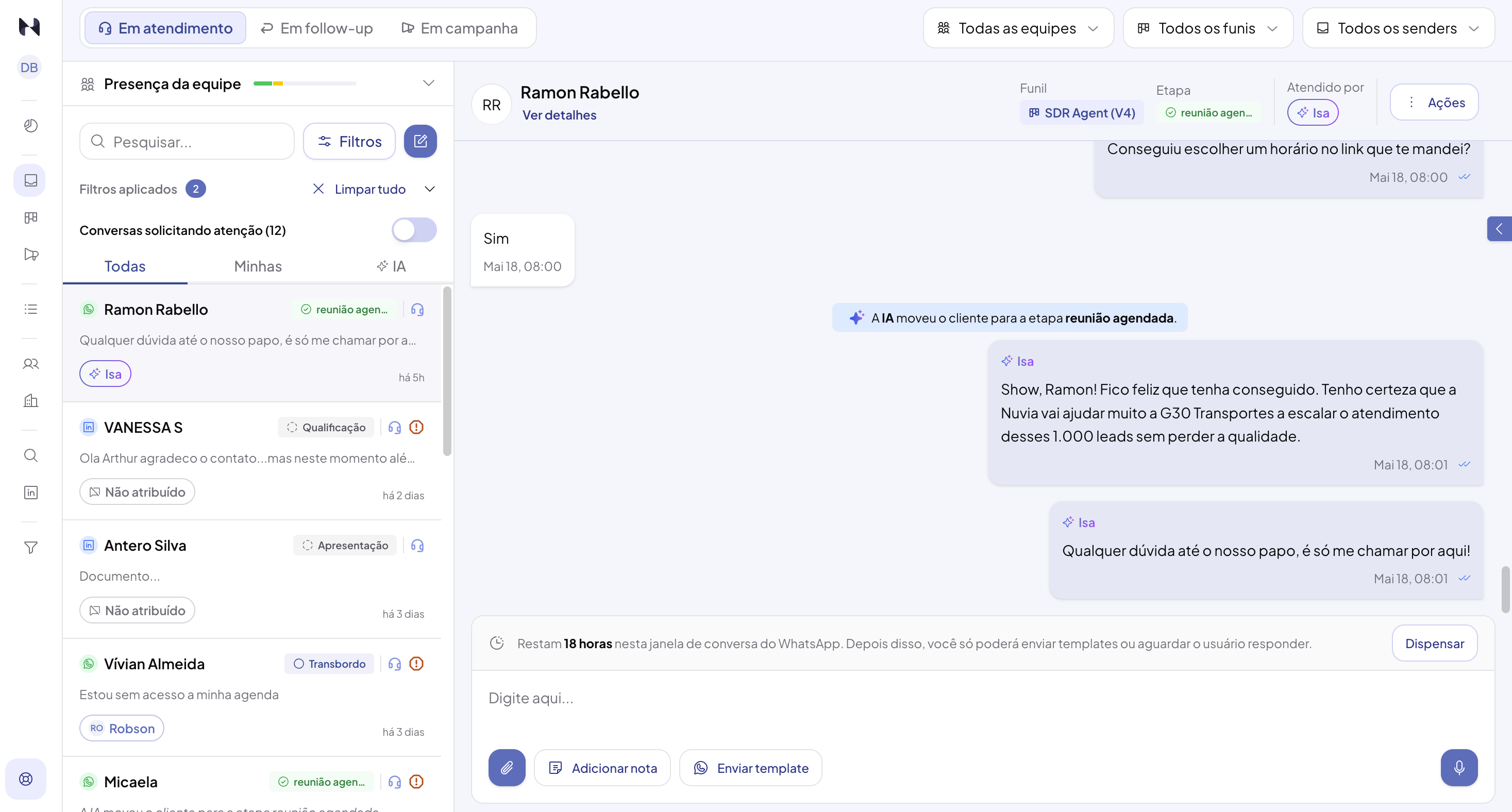
5. Conversations
What it does: unified service hub that brings service messages together in a single panel. Supports assignment by team, full conversation history, and transfer between humans or from AI to a human.
Who it's for: sales agents and the customer success team.
Result: a complete view of each customer in one place; fast, contextual replies.
6. Pipeline
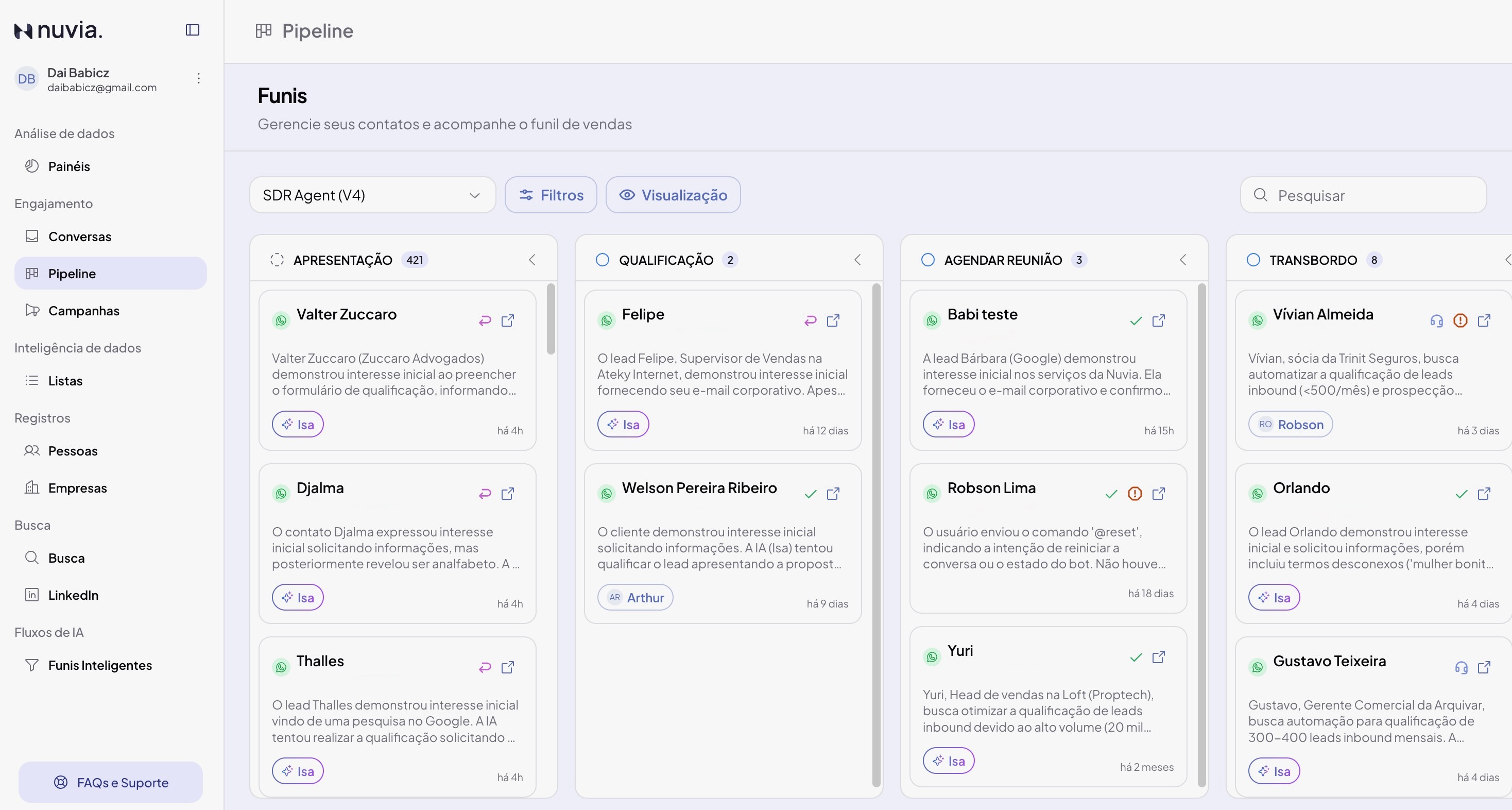
What it does: real-time sales Kanban. Shows all leads spread across stages, from first contact to closing. Customizable stages and automatic updates through AI actions.
Who it's for: sales managers, CEOs, and leaders who need to follow funnel progress.
Result: A clear management view of the pipeline; alerts for stalled leads; visible team capacity.
7. Dashboards
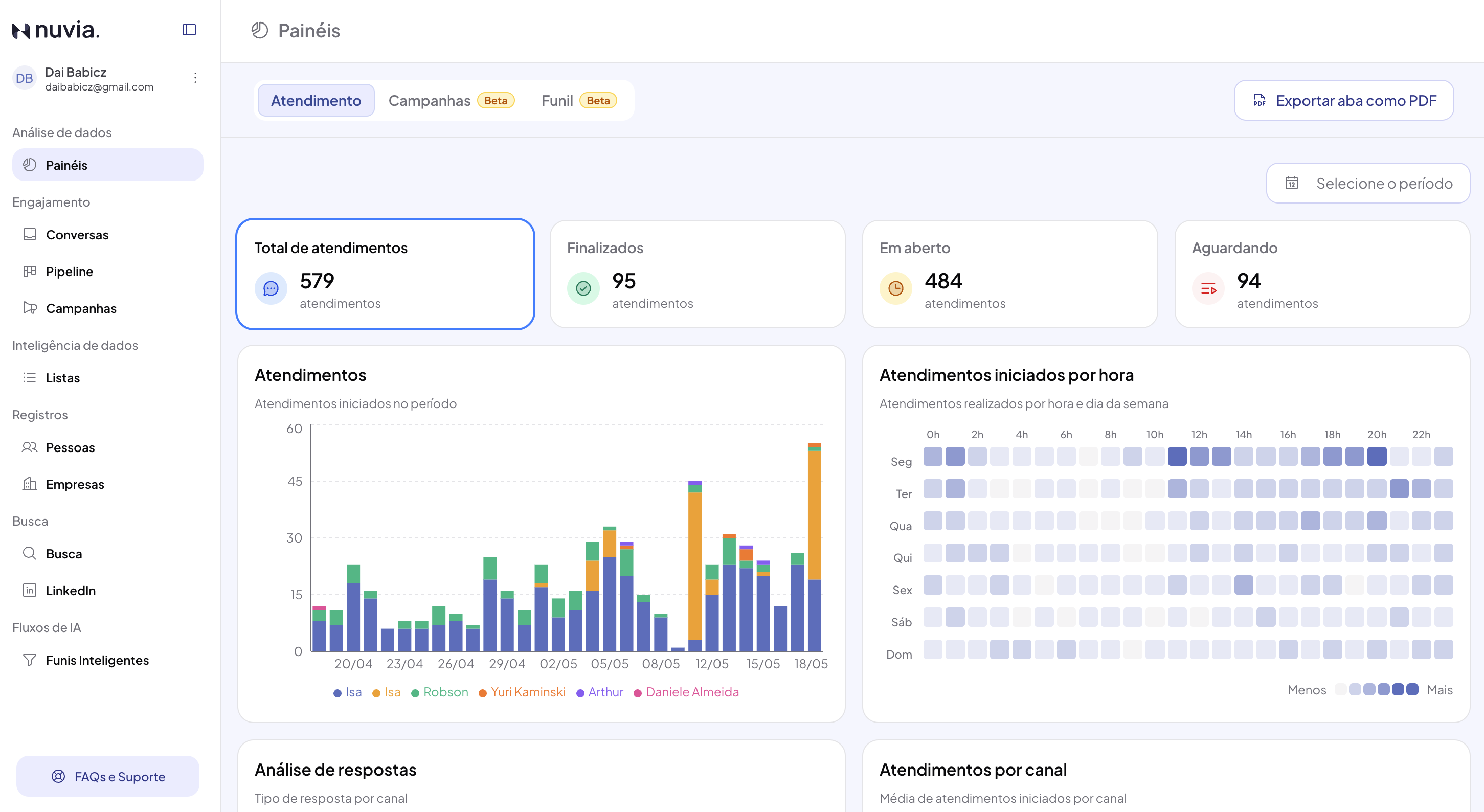
Works as an analytics hub organized into three tabs:
-
Service: tracks interaction volume and response time.
-
Campaigns: shows reach, open rate, and engagement (replies) metrics.
-
Funnel: shows conversion by stage and identifies drop-off points.
Who it's for: Sales managers, CMOs, and executives who track KPIs.
Result: Real-time metrics (service and funnel); up to 1 hour of delay for campaigns.
8. Settings
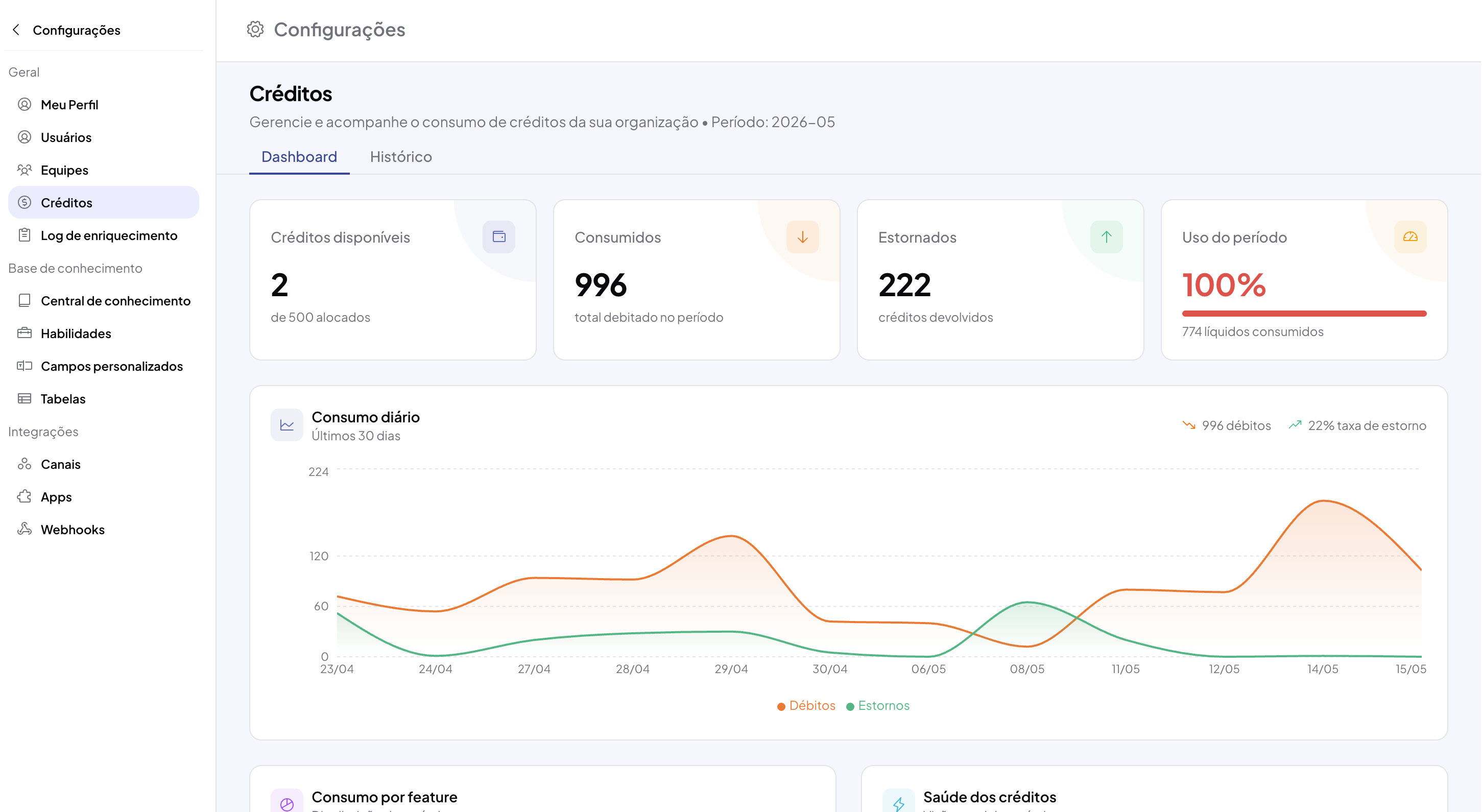
What it does: brings the account settings together in one place, including user and team management, permissions by role (admin, manager, and agent), tracking of enrichment credit usage, channel management (WhatsApp and LinkedIn), integrations with tools like HubSpot, Google Calendar, and webhooks, plus global system parameters.
Who it's for: Platform admins and Sales Ops.
Result: A configured environment, aligned teams, and working integrations.
Typical workflow
-
Prepare: create lists with existing contacts or use the search tool to find qualified leads
-
Automate: create a campaign and/or a smart funnel to reach out to those contacts
-
Follow up: replies arrive in the Conversations tab; the AI responds, qualifies, and moves the lead in the Pipeline (if a smart funnel is set up)
-
Analyze: check the dashboards to validate what works and optimize
Next steps
If you're new to Nuvia:
-
Explore Search to practice finding leads
-
Start with the Lists module to understand how to organize contacts
-
Set up your first Campaign to understand the message flow
-
Follow replies in the Conversations tab
Find help fast
-
About a specific module? Search for the module name in the search bar (e.g., “Campaigns”, “Smart Funnels”)
-
Question about a term? Check the Nuvia glossary of terms
-
Question about security or privacy? See Security, privacy, and LGPD at Nuvia
Need personalized help?
Get in touch with our success team. We're here to make sure you get the most value out of Nuvia!