
Smart Follow-up re-engages leads who went quiet in the middle of a conversation. When the lead stops replying, the AI sends follow-up messages based on the conversation and switches to an approved template when the WhatsApp 24-hour window expires, with no manual effort.
Available on: all plans.
Who can do it: any user with access to the Smart Funnels module.
How it works
When the lead has been inactive for the time you set, the AI generates and sends a follow-up. With no reply, new follow-ups go out at increasing intervals up to the attempt limit. When the 24-hour window expires, the system uses an approved template. At the end of the sequence, with no reply, the lead moves to a final stage (e.g. “Cold Lead”) and leaves the sequence.
Before you start
-
A Smart Funnel created and active
-
A connected WhatsApp channel
-
A template approved by Meta linked to the funnel's inbox
Set up the Follow-up
Open Smart Funnels, click View details on the funnel, go to the Follow-ups tab and click Add follow-up (or edit an existing one). The modal is split into three blocks: Sending, Scope and Message.
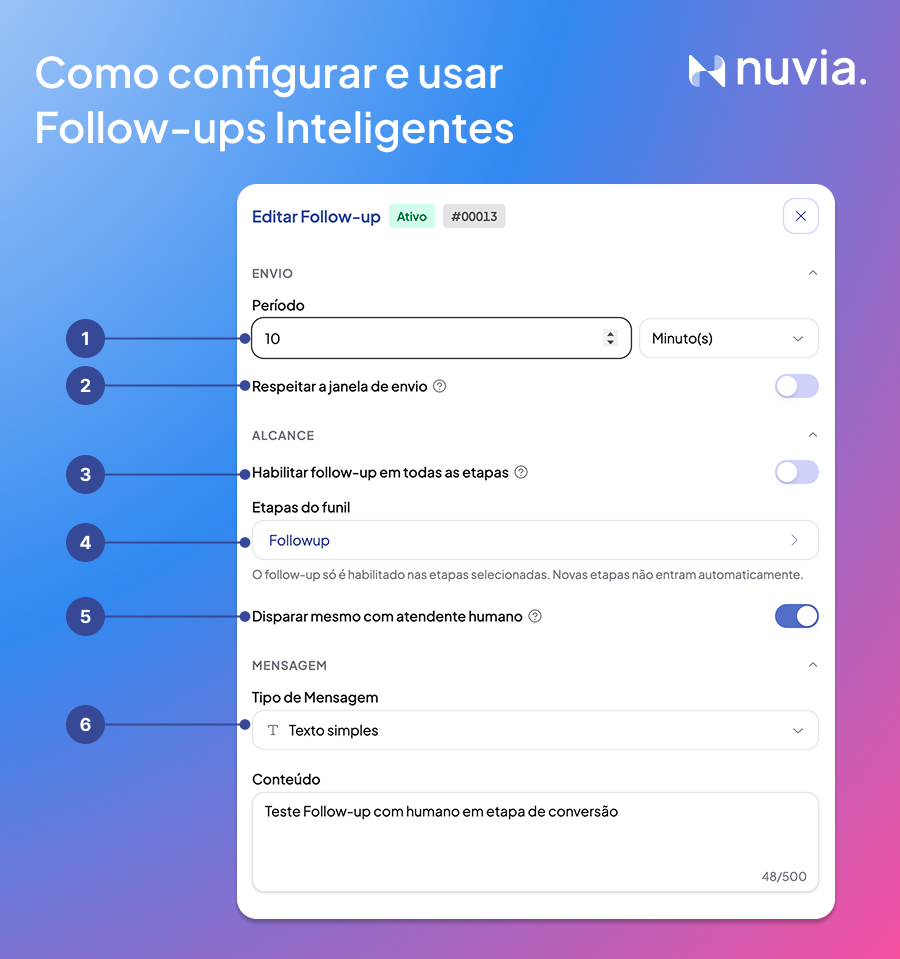
Sending
1. Period: the interval between the lead's last reply and the follow-up being sent. It can be in minutes, hours or days.
2. Respect the sending window: when on, the follow-up only goes out Monday to Friday, from 8 a.m. to 8 p.m. See the Sending window section below.
Scope
3. Enable follow-up on all stages: turns on the follow-up for every stage of the funnel at once.
4. Funnel stages: with item 3 off, select here the stages where the follow-up fires. It's only enabled on the selected stages, and new stages aren't added automatically.
5. Fire even with a human agent: off by default, so the follow-up isn't sent when an agent has taken over the conversation. When on, the follow-up goes out without handing the conversation back to the AI, without changing the owner, agent or stage, and it's recorded in the timeline. Only admins can change it.
Message
6. Message type: defines what will be sent. Below it is the Content field (or the template/agent, depending on the type). There are three types:
-
Plain text: a regular text message. Only works within the 24-hour window.
-
WhatsApp template: an HSM template approved by Meta. You need to choose the number (sender) already connected to Nuvia.
-
AI agent: the AI runs the prompt's tools and generates a personalized message, or sends a pre-configured template (same rules as WhatsApp template).
Sending window
Automatic follow-up respects a fixed window for the whole platform: Monday to Friday, 8 a.m. to 8 p.m. (Brasília time). 8 p.m. sharp is already outside; the last possible minute is 7:59 p.m.
-
The “Respect the sending window” switch (item 2) is on by default. When it's off, the follow-up also goes out on weekends, but is still limited to 8 a.m. to 8 p.m. (never overnight).
-
Anything due outside the window is postponed, not canceled: it goes out at the next opening, keeps its position in the sequence and records the reason in the timeline.
-
When the window opens, postponed follow-ups are released spread across the first hour, so they don't overload the inbox or the WhatsApp number.
-
The sweep runs every 10 minutes; before sending, the system checks whether the conversation is still “Open”.
Inside and outside the 24-hour window
-
Inside the 24-hour window (or 72 hours, for leads from Click-to-WhatsApp ads): the AI sends a free-form, contextual message.
-
Outside the window: WhatsApp doesn't allow free-form messages, so the system uses the configured HSM template.
Details in Understanding WhatsApp rules: 24-hour window, 72 hours and templates.
Set up a sequence
To build a sequence, create more than one follow-up on the same agent: in the Follow-ups tab, click Add follow-up, configure it, click Create follow-up and repeat. Set each one's Period with spacing, so you don't overwhelm the lead.
End of the sequence
After running out of attempts with no reply, the lead leaves the sequence, is moved to the configured final stage (e.g. “Cold Lead”), keeps its history accessible and can be reactivated manually.
Turn off or delete a follow-up
Turn off: in the Follow-ups tab, click the toggle on the left side of the row. The status changes to “Disabled” and the data is kept.
Delete: click the trash icon on the right side of the row and confirm. The row disappears from the list.