How to export Dashboard reports in Nuvia

Export the Service, Campaigns, and Funnel tabs of the Dashboards as PDF to share KPIs, archive results, or build presentations.

Available on
All plans
Who can do it
Admin and Manager

Dashboards bring together your service, campaign, and funnel metrics in real time. You can export each tab as a PDF to share with stakeholders, archive for historical comparison, or use in results presentations. This article shows how to export, what the PDF includes, and the limits of the export.

Available on: All plans.

Who can do it: Admin and Manager.


What you need before you start

  • Admin or Manager access (agents can't export reports)

  • Data flowing into the platform for the period you want to export (conversations, campaigns, or funnels)


Export a report as PDF

  1. In the side menu, click Dashboards. The page opens on the service tab

  2. Click the tab you want to export: Service, Campaigns, or Funnel

  3. If you want, apply filters and a period before exporting. The applied filters appear in the PDF footer

  4. In the top right corner, click Export tab as PDF

  5. In the browser's print window, choose Save as PDF as the destination, give the file a descriptive name (e.g., Relatorio_Atendimento_Marco_2026.pdf), and save


What the PDF contains

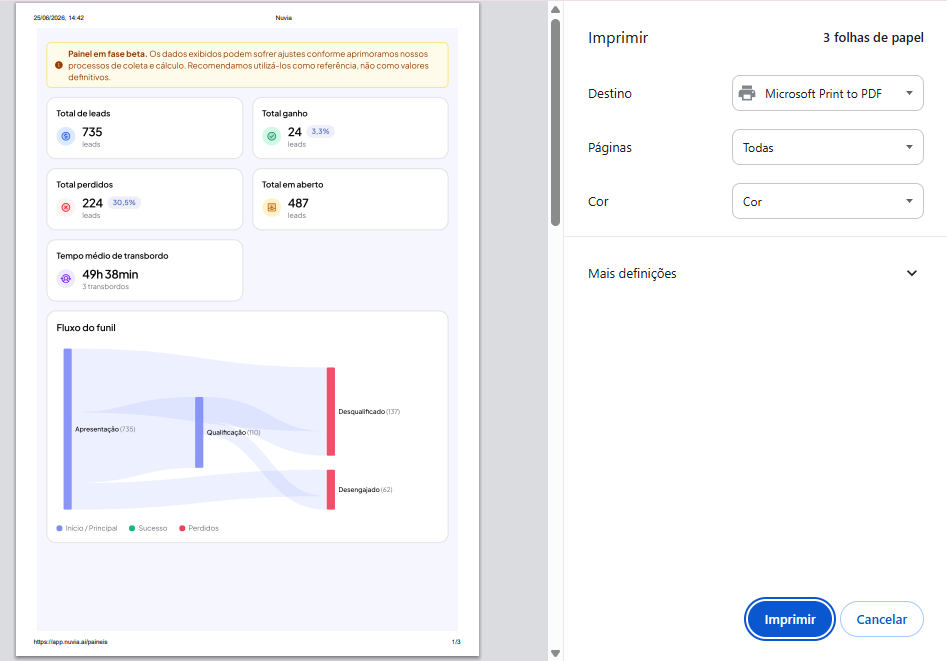
The PDF reproduces the visible content of the tab at the time of export:

  • The dashboard summary cards

  • The tab's charts and tables (up to 10,000 records, split across several pages when needed)

  • The date and time it was generated, the period analyzed, and the filters applied

Sample PDF
What the PDF contains

Frequently asked questions

Frequently asked questions

Who can export Dashboard reports?

Only users with the Admin or Manager role. Agents can't export reports.

What format is the report in?

PDF. The export uses the browser's print window, where you choose “Save as PDF” as the destination.

Can I export all tabs at once?

No. You export one tab at a time. Export Service, Campaigns, and Funnel separately, and name each file clearly.

Are the filters I applied included in the report?

Yes. The PDF reproduces the tab's content at the time of export, along with the filters and period applied.

Does the PDF include the detailed conversations?

No. The PDF only includes the tab's summaries, charts, and tables. For full conversations, use the Conversations module.

If I change the filters after exporting, does the PDF update?

No. The PDF is a snapshot of the moment of export. For an updated version, export again.

The file didn't save after I clicked Export. What happened?

The browser's print window was probably canceled. Click Export tab as PDF again, choose “Save as PDF” as the destination, and set where to save the file.

Was this article helpful?