What a WhatsApp CRM is
A WhatsApp CRM is a customer database connected to your WhatsApp conversations: each contact has history, data, a stage and an owner in one place. It fixes a familiar problem: a customer messages the company number, a sales rep replies from their phone and, a week later, nobody knows what was agreed or where the deal stalled.
A good CRM with WhatsApp integration does three things. It keeps the whole conversation on the customer record. It shows which stage each conversation is in. And it makes clear who owns it right now, whether that is a person on the team or an AI agent.
Two approaches: WhatsApp bolted onto the CRM, or the conversation as the CRM
There are two ways to combine WhatsApp and a CRM, and the difference shows up in the team’s daily work. In the first, WhatsApp is bolted onto a traditional CRM: the conversation happens in one place and someone has to copy what matters and move the card by hand. In the second, the conversation is the CRM: every message updates the stage, the fields and the owner with no manual work.
| Point | WhatsApp Business app and a spreadsheet | WhatsApp bolted onto the CRM | Conversation as the CRM, with an AI agent |
|---|---|---|---|
| Where the conversation lives | On each rep’s phone | In a log attached to the contact | On one screen, with the pipeline and stage of each conversation |
| Who moves the stage | Nobody, or the spreadsheet at the end of the day | The rep, when they remember | The AI, as the customer replies, pays or books, with the reason logged |
| Who replies after hours | Nobody | A flow-based chatbot, if there is one | The AI agent, 24/7, with handoff to the team |
| Qualification | In the rep’s head | Fields someone has to fill in | Summary, temperature and Lead Score calculated from the conversation |
| Main risk | Losing the history when someone leaves | Outdated data in the CRM | Setting up the pipeline without reviewing the stages |
Nuvia takes the second approach. The Smart Funnel turns every conversation into pipeline, and the Conversations platform shows all of them on one screen. If your company already runs HubSpot, Salesforce or RD Station, nothing moves: Nuvia syncs both ways with your current CRM.
What to look for in a WhatsApp CRM
Check seven criteria. Use the list below in any product demo and ask to see each item working, not just on a slide.
What to look for in a WhatsApp CRM
- The official WhatsApp API and coexistence with the WhatsApp Business app on the same number
- Conversations from every team (sales, support and post-sale) on one screen
- Pipeline stages that update on their own as the conversation moves forward
- A summary and Lead Score on every conversation
- AI-to-human handoff with context, so the customer never repeats themselves
- Two-way sync with the CRM the company already uses
- Dashboards by pipeline and by person, with AI and team side by side
1. Official API and coexistence with the app
The connection should go through Meta’s official WhatsApp API. Unofficial WhatsApp Web extensions and QR code connections drop more often and put the number at risk of being banned. Ask about coexistence too: with it, the same number keeps working in the WhatsApp Business app and in the CRM, with messages in sync. That way, the business owner keeps the app they already use on their phone.
2. Every conversation, from every team, on one screen
Sales, support and post-sale all talk to the same customer. If each team has its own tool, nobody sees the full story. In Nuvia’s Conversations inbox, every conversation sits together, with filters by inbox, pipeline and team and the Mine, AI, Needs attention and Unassigned views. The team can see them as a list, a table or columns by pipeline stage.
Check the other channels as well. Nuvia brings in WhatsApp, LinkedIn, webchat, email, SMS, RCS and calls, and each contact keeps a full history on one timeline. The post on channel integration in B2B shows why this matters for sales.
Quick replies with variables
Save a message once, with variables and attachments, and use it in any conversation by typing /. If the contact's name is missing, a fallback goes in or sending waits: the customer never gets a blank field.
Audio, images and PDFs in the chat
Send and receive media without leaving the desk and open PDFs right on screen. The AI transcribes voice notes and describes photos and documents.
Transfers with full history
Pass the conversation to another person or a team. The history goes with it and the customer never notices the switch.
Priority and Needs attention
Urgent goes to the top of the queue. When a customer replies to a conversation a person is handling, it gets the Needs attention mark instantly.
Inbox, Table and Kanban
Answer from the list, review and export from a table with the columns you want, or drag the conversation to another stage in Kanban.
Full conversation as PDF
Create the complete record of a conversation, in order, showing who said each message.
WhatsApp on the phone and in Nuvia
With coexistence, the same number works in the WhatsApp Business app and in the desk, with messages in sync.
24-hour window in sight
The desk warns when the WhatsApp window is about to close and suggests the approved template to restart.
Connected to the rest of your operation
Contacts synced with HubSpot and RD Station, plus API, webhooks and MCP to take conversations wherever you need.
One-click calling
Call the contact straight from the conversation, in the browser. The recording and transcript stay in the history.
A record of every conversation
Time to first reply, handoff wait time and handling time on every conversation, with the last 90 days exportable to a spreadsheet.
3. Every conversation with an owner, context and a next step
Each conversation should show whether it is with the AI, with a person or with nobody. That keeps customers from waiting because everyone assumed someone else would reply. In Nuvia, when someone on the team replies, the conversation moves to that person and the AI agent pauses there. Whoever takes over reads a ready summary, and the customer repeats nothing. To hand the conversation back to the AI, just use Resume AI.
4. Stages that update on their own
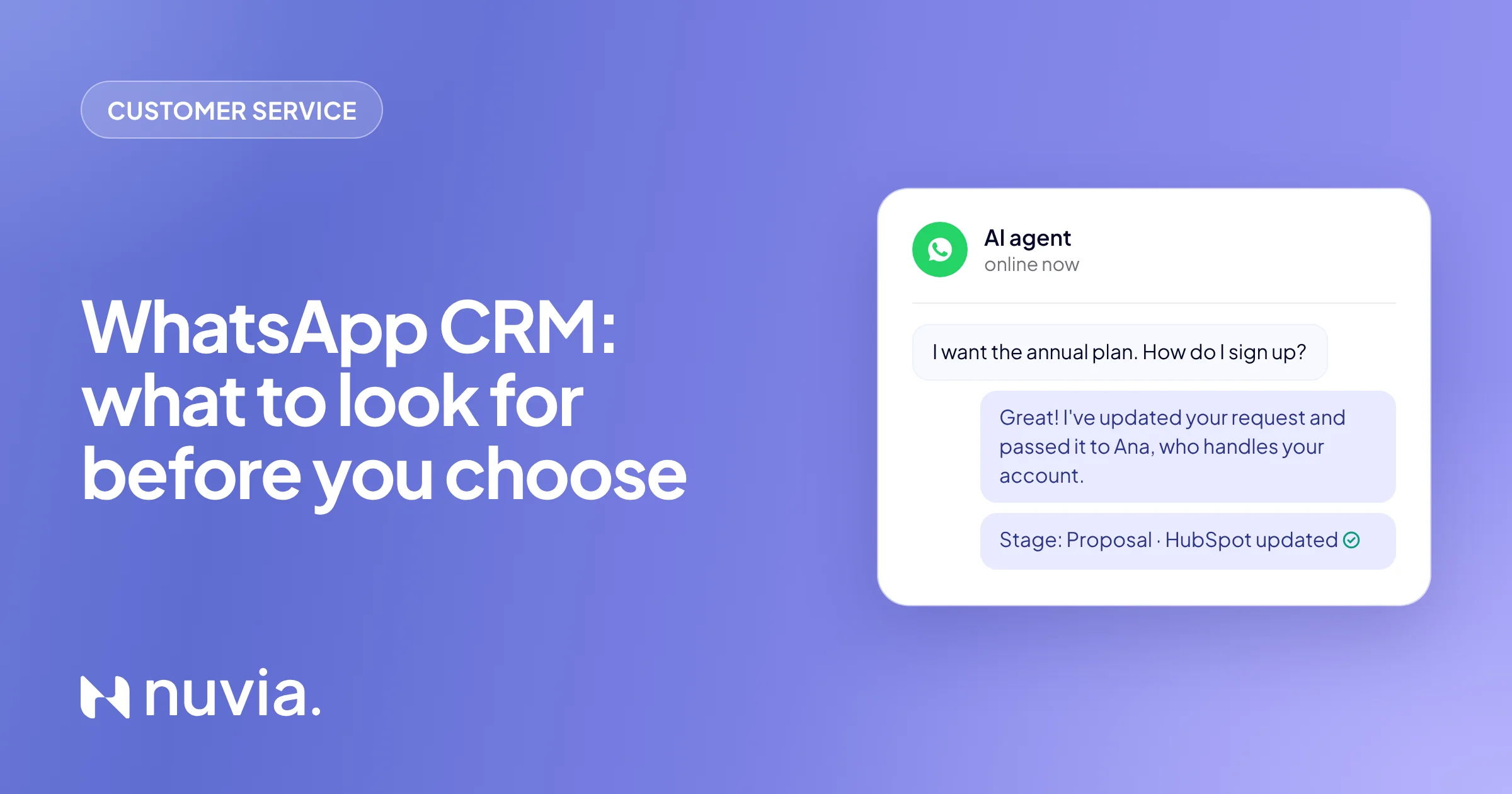
This is the criterion that most separates the two approaches. Ask: who moves the card? If the answer is “the rep”, the pipeline will go stale. In Nuvia’s Pipeline, the AI changes the stage when the customer replies, resolves, pays or books, and logs the reason. Stalled conversations get a warning, so the team can act before losing the customer. The team can still drag the card at any time.
5. A summary and Lead Score on every conversation
Nobody has time to read 80 messages before calling a lead. Ask to see the conversation summary and the qualification. In Nuvia, every conversation comes with a summary, sentiment and temperature. On sales conversations, the AI applies BANT, GPCT or MEDDIC and gives a Lead Score from 0 to 100 based on the company’s ideal customer profile, with the reasoning behind each criterion. The same data becomes filters and columns in the conversations table.
6. Sync with the CRM you already use
Switching CRMs is expensive and slows the team down for weeks. So ask whether the tool syncs with your current CRM and in which directions. In Nuvia, the sync with HubSpot, Salesforce and RD Station works both ways: stage, fields and owner go to the CRM, and whatever changes there updates Nuvia. The next section shows how this works field by field.
7. Dashboards by pipeline and by person
Managers need to see the whole operation without building spreadsheets. Check whether the dashboard shows the journey numbers, from first contact to closed, the stage where conversations stall and who resolves them, from the AI agent to people on the team. In Nuvia, service dashboards show volume, distribution, average handoff time and performance by agent, with score, temperature and sentiment rolled up.
If you already have a CRM: what to sync
Sync contacts, deals, owners and conversation transcripts, and set the direction for each field. The table below is an example setup. In Nuvia, you choose, property by property, whether data flows both ways, only to the CRM or only to Nuvia. When something changes on one side, the other updates in seconds.
| Data | Direction | Why |
|---|---|---|
| Email and phone | Both ways | The contact stays the same in both systems, whoever updated it |
| Deal stage | Both ways | The AI moves it from the conversation, and reps can move it in the CRM |
| Temperature | To the CRM | What the agent learns in the conversation reaches the rep |
| Owner | To Nuvia | The owner set in the CRM also applies to the WhatsApp conversation |
| Conversation transcript and summary | To the CRM | Anyone opening the CRM record understands the deal without opening WhatsApp |
This way, your contact records keep one clear source of truth, and the AI agent replies with the context that came from the CRM. For other systems, there are an API, webhooks and MCP.
 HubSpot
 Salesforce
 RD Station
 WhatsApp
How to test a WhatsApp CRM before you buy
Test it with a real conversation from your business, not the demo script. Five steps are enough to see whether the system meets the checklist:
Message as a customer
See who replies, how fast, and whether the conversation already shows a pipeline and stage.
Reply as a team member
Check that the AI pauses in that conversation and that you get a ready summary.
Move the deal forward
Ask for a quote or book a meeting and see whether the stage changes on its own, with the reason.
Open your CRM
Check that stage, fields and owner arrived there, and change a field to see if it syncs back.
Open the dashboard
See whether the conversation shows up in the numbers for the pipeline and for the person who handled it.
If your decision also covers AI customer service, the guide to the best AI customer service software helps compare what each type of solution delivers.
Results in practice
At Lemon, Nuvia’s AI agent started qualifying incoming customers and took over 50% of the qualification process, with twice the service capacity. The company no longer needs a team dedicated only to that step. Read the full Lemon case study.

From lead origin to reading the energy bill, Nuvia automates the customer journey and frees the team for closing and the most complex conversations.
Read the storyFrequently asked questions
What is a WhatsApp CRM?
It is a customer database connected to WhatsApp conversations: each contact has history, data, a pipeline stage and an owner in one place. The best ones update the stage from the conversation itself, with no one copying anything by hand.
What is the best CRM for WhatsApp?
The best one uses the official API, shows every conversation on one screen, updates stages on its own and syncs with the CRM your company already uses. Test it with a real conversation and check whether the pipeline updates itself.
Does WhatsApp have an official CRM?
No. Meta offers the WhatsApp Business app and the official WhatsApp API, and CRM systems use that API to connect conversations to customer data. So check that the tool connects through the official API, not an extension or QR code.
How do I use WhatsApp as a CRM?
Connect the company number to a platform that saves each conversation on the customer record, with a stage and an owner. In Nuvia, conversations from every team sit on one screen, and the AI agent updates the pipeline as the customer replies.
Can I use the same number in the WhatsApp Business app and the CRM?
Yes. With coexistence, the same number works in the WhatsApp Business app and in the platform, with messages in sync. The team works from the computer, and whoever prefers can keep using their phone.
How do I integrate WhatsApp with HubSpot, Salesforce or RD Station?
By connecting the CRM to a WhatsApp platform that syncs both ways. In Nuvia, you set the direction for each contact property, and stage, fields and owner stay the same on both sides.
What changes in a WhatsApp CRM with AI?
The AI replies, qualifies and moves the stage on its own, and the team steps in when the customer needs a person. In the Smart Funnel, every conversation comes with a summary, temperature and a Lead Score from 0 to 100.