
You track interactions coming from AI agents, campaigns and inbound alike, with full visibility into who is replying, which stage the conversation has reached and what priority it has.
Available on: all plans.
Who can do it: any user with access to the Conversations module.
What you need before you start
-
At least one connected channel (WhatsApp, LinkedIn, etc.)
-
Active conversations on the platform (they can come from campaigns, inbound or AI agents)
-
Access to the Conversations module according to your role permission (agent, manager or admin)
Key concepts
| Concept | What it is | When to use |
|---|---|---|
| Conversations | A unified hub that brings together all active conversations from all channels in a single panel | Always: it's the main entry point for customer service operations |
| Who is replying | State that shows whether the conversation is being answered by AI, by a human, or is unassigned | To quickly see who is responsible: AI (automated agent), Human (agent), Unassigned (nobody) |
| Owner | A follow-up link to the conversation, independent of the agent. It's the user responsible for following the lead, without necessarily entering the service queue | To record who follows the opportunity (e.g. the responsible salesperson), even if day-to-day service is handled by someone else or by the AI |
| Stage | The conversation's position within the Smart Funnel. It can be “Qualification”, “Proposal”, “Closing”, etc. | To know what stage of the conversation the contact is in |
| Conversation status | The conversation's state: Open (active) or Resolved (closed) | Open is the default; Resolved means the service was completed |
| Priority | The conversation's urgency level: No priority (default), Low, Normal, High, Urgent | To make sure critical conversations are handled first |
| Sender | Identifier of the inbox / channel the conversation came in through | To know which inbox the message came from |
Navigate Conversations
-
In the sidebar, click Conversations
-
The main panel shows the list of conversations with:
-
Contact name at the top
-
Last message (excerpt of up to 2 lines)
-
Stage (e.g. “Qualification”)
-
Who replies (AI, Human or Unassigned)
-
Time since the last interaction
-
Status indicator (Needs attention, In service)
-
Priority indicator (when set)
-
-
Click to open the full conversation in the right side panel
-
The side panel shows:
-
Actions menu (mark conversation as resolved, assign agent, team, funnel stage and set priority)
-
Contact data (name, phone, email, custom fields)
-
Conversation files (images, videos and documents exchanged, grouped by type)
-
Full history of the conversation (all messages, in chronological order)
-
Filter conversations
The Conversations module offers three filter levels to help you find conversations quickly: main filters at the top, who-is-replying tabs and the advanced filters panel.
Main filters
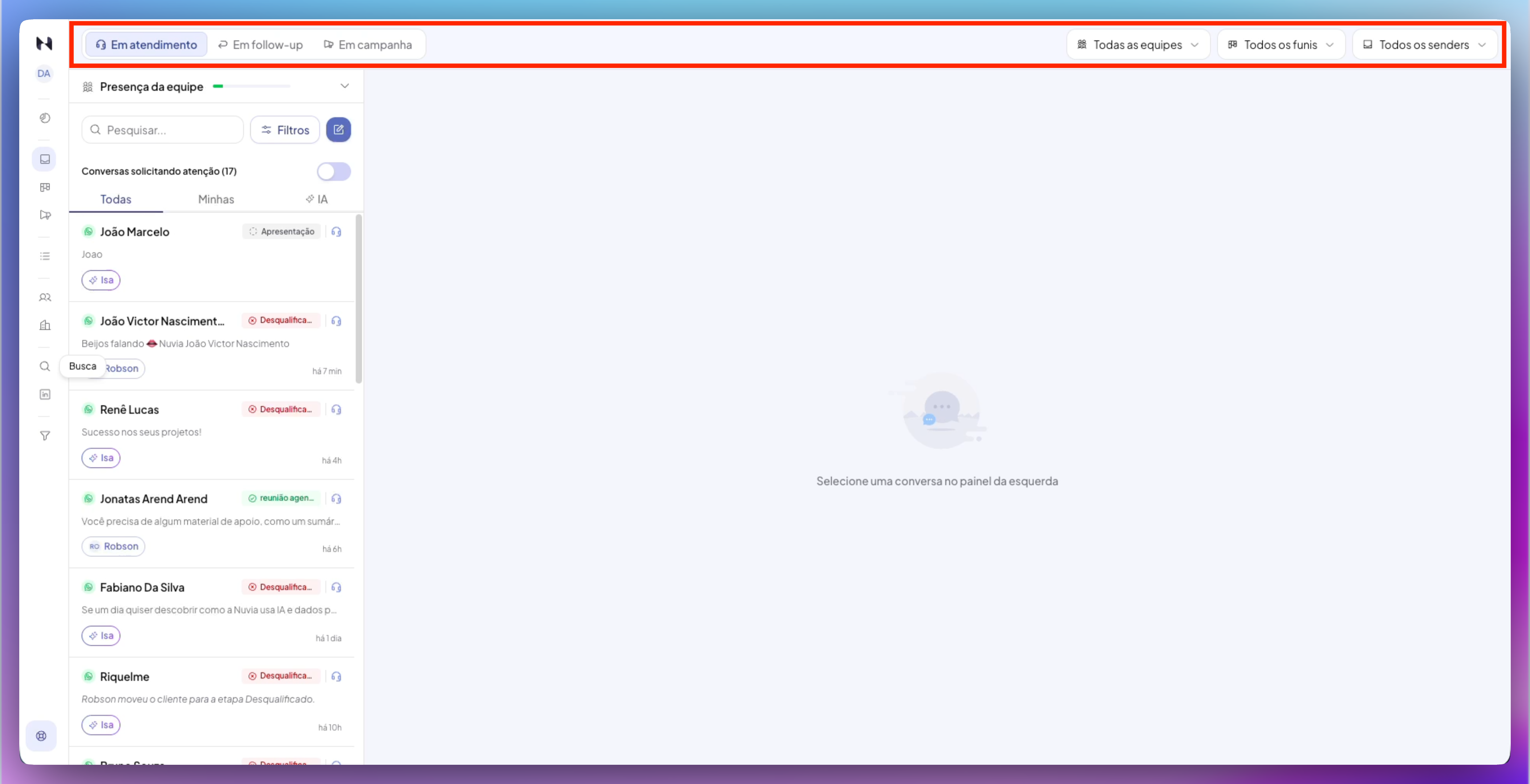
The top bar holds the filters that define the set of conversations you're viewing.
-
Conversation status – filter by state:
-
All conversations – shows conversations of every status (open and resolved) with no state filter pre-applied. Useful for a complete overview
-
In service – conversations where a human or the AI has taken control
-
In follow-up – conversations waiting for the contact to reply
-
In campaign – conversations that are part of an active campaign
-
-
All teams – filter conversations from just your team or from everyone
-
All funnels – filter by a specific Smart Funnel (or all)
-
All senders – filter by the sender's channel
Who-is-replying tabs
Within the list, three tabs switch the focus:
-
All – all conversations within the applied filters
-
Mine – your conversations. It includes conversations where you're the agent and, for users whose permission is limited to their own conversations, also those where you're the Owner (before, this filter only showed conversations where you were the agent)
-
AI – only conversations where the AI is replying
Advanced filters panel
Click the filter button to open the panel with additional filters:
-
Funnel stage – filters by one or more Smart Funnel stages
-
Agent – filters by assigned agent
-
Creation date – filters by date range
-
Conversation state – three options:
-
Open – active conversations (default)
-
Resolved – conversations marked as completed
-
All statuses – shows open and resolved together
-
How to apply and clear filters
-
Select the filters you want in the panel to update the list
-
Applied filters show up as pills (clickable indicators) above the conversation list
-
Click a pill to reopen the advanced filters panel and edit that filter
-
Click the X on a pill to remove just that filter
-
Click Clear all to reset all filters
Assign a conversation to an agent
Assigning a conversation to a specific agent transfers the responsibility for replying to that person. This is useful when you want a specialist to take over the conversation or when you're routing manually.
Step by step
-
Open the conversation by clicking its card in the list
-
In the side panel, click the three dots (⁞) button at the top right of the conversation
-
Click Assign agent
-
A window opens showing the team's agents, with a presence indicator (online/away/offline)
-
Use the Search user… field at the top to filter by name (the search ignores case and accents)
-
Click the agent you want
-
The assignment is made
What happens after assignment
-
The conversation's “Who replies” field is updated to show the agent's name
-
If an AI agent was replying, the system pauses the AI
-
The selected agent receives the conversation and can start replying immediately
-
All following messages are answered by the agent (not by the AI)
Assign a conversation to a team
Assigning a conversation to a team (instead of a specific agent) gives it to any available team member. This is useful for automatically spreading the workload across multiple operators.
Step by step
-
Open the conversation by clicking its card
-
In the side panel, click the three dots (⁞) button
-
Click Assign team
-
A menu opens with the account's list of teams (each item shows the team name and the number of online/offline agents)
-
Select the team you want
-
The assignment is made
What happens after assignment
-
The “Who replies” field is updated with the team's name
-
The conversation becomes visible to all agents on the team
-
The first team agent to reply becomes responsible for the conversation
Set a conversation's owner
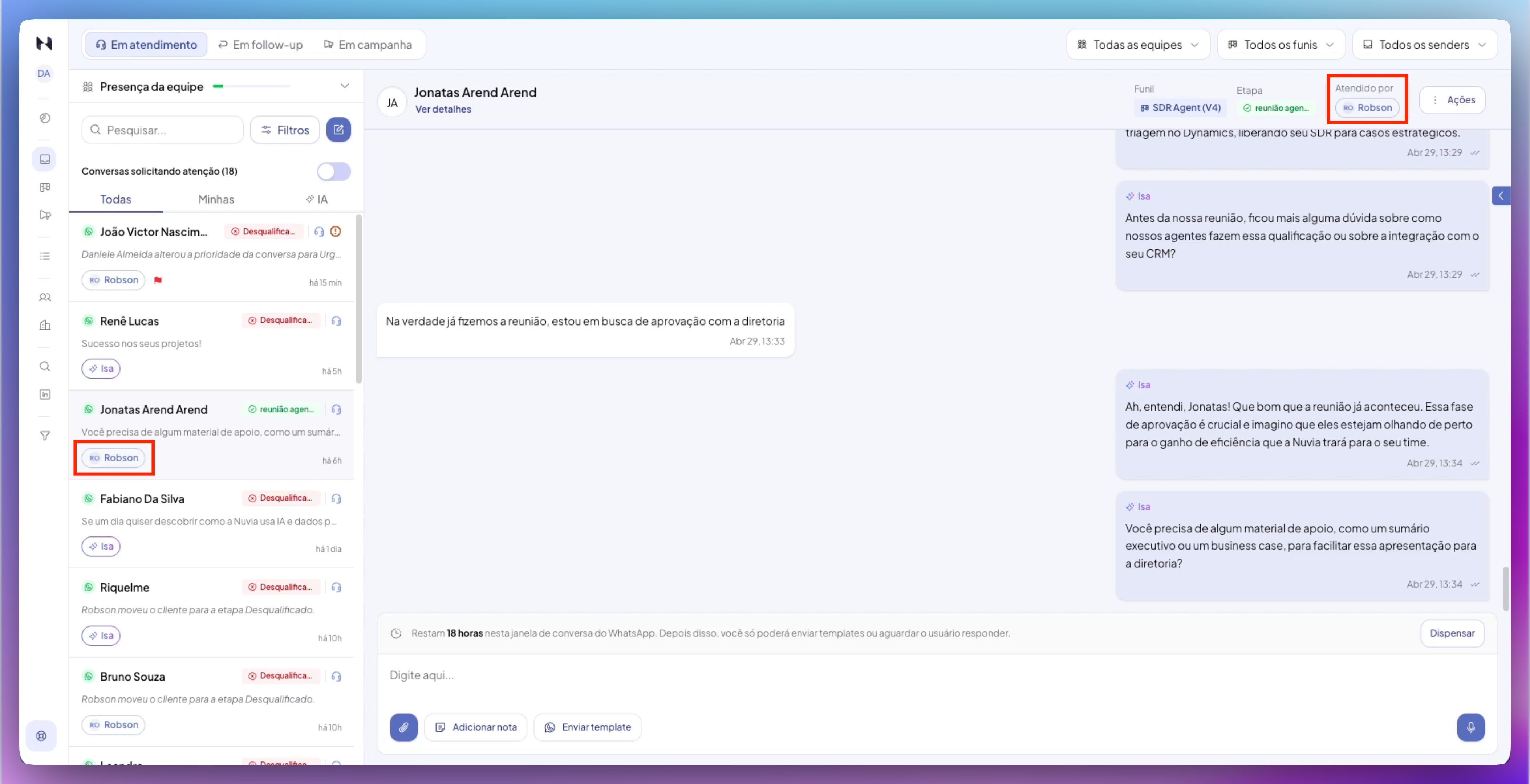
The Owner is a follow-up link to the conversation, separate from the agent. Use it when a salesperson needs to follow a lead without entering the service queue: setting the owner does not change who is replying (Who replies), does not reassign the agent and does not send a message in the conversation.
Owner vs. Agent
-
Agent — who is in the queue and replies to the conversation day to day
-
Owner — who follows the lead or opportunity (usually a salesperson), even offline, without taking over the service
In the conversation header, the Owner block appears whenever an owner is set, next to Handled by (which reflects who is replying).
How the owner is assigned
-
Manually, with the Set owner action in the conversation, choosing a user from your account
-
Automatically, by a Smart Funnel (AI agent) during the conversation, when the flow records who is responsible for follow-up
-
When you start a conversation manually: when you use Start new conversation in the Inbox, you're set as its owner right away. This makes sure the conversation shows up for you even when your access is limited to your own conversations (“Own” or “Own + AI”). Conversations that come from the lead (inbound) or from a campaign still start without an owner, as before.
The owner must be a user from the same company. Older conversations start without an owner — the platform doesn't assign owners retroactively.
Assign a funnel or stage
Besides people and teams, you can change the smart funnel running the conversation or jump to a specific stage within the current funnel.
Assign a different funnel
-
Open the conversation
-
Click the three dots (⁞) button
-
Click Assign funnel
-
Select the funnel you want from the list
-
A confirmation window opens
-
Click Confirm
-
The conversation's active funnel changes and the AI starts running the new flow
Assign a stage
-
In the same menu, click Assign stage
-
A side menu opens with the stages grouped by type (Main, Success, Discard)
-
Click the stage you want; the conversation moves to that stage instantly
Resume AI in a human conversation
When a human agent takes over a conversation (Who replies = Human), the AI is paused. You can hand control back to the AI at any time.
Step by step
-
Open the conversation being answered by a human
-
In the three dots button, choose:
-
Resume AI – the AI starts replying again immediately, without sending a message
-
Resume AI and send message – opens a window where you can add extra context before the AI continues
-
-
Confirm in the window that opens
What happens
-
The “Who replies” indicator goes back to “AI”
-
The AI resumes the flow based on the conversation's context
-
If there's a conflict error or the service is unavailable, a warning is shown
Set a conversation's priority
High-priority conversations stay at the top of the list and need faster attention. You can adjust the priority manually based on how important the contact or opportunity is.
Step by step
-
Open the conversation
-
In the side panel, click the three dots (⁞)
-
Click Set priority
-
Click the priority you want from the options:
-
No priority (default, removes any priority set)
-
Low
-
Normal
-
High
-
Urgent
-
Impact of priority
-
Conversations with Urgent priority always show at the top of the list
-
Conversations with High priority show after Urgent ones
-
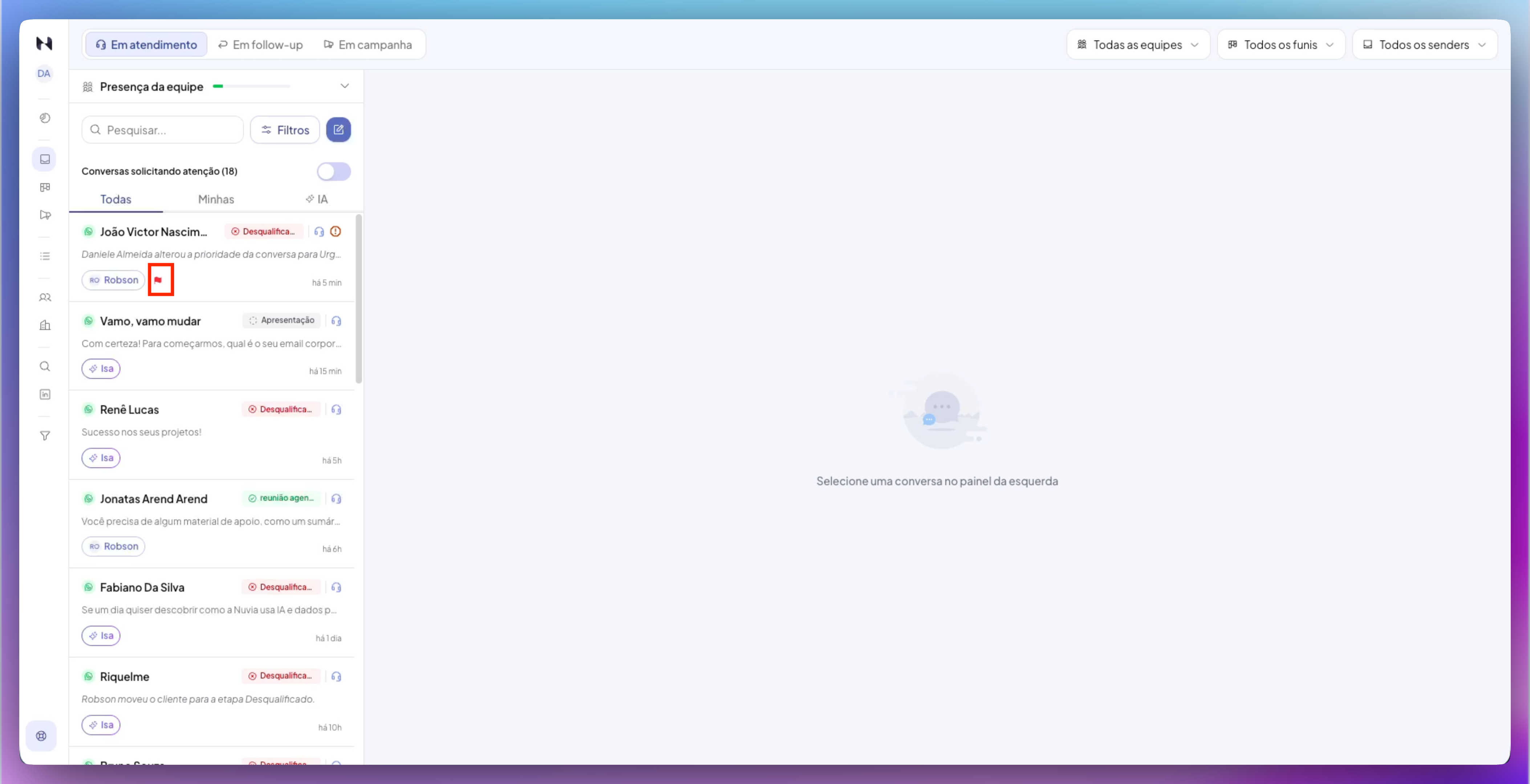
The priority is visible as a small flag on the conversation
Mark as resolved
Resolved conversations are marked as completed and leave the Conversations module's default view. The history and data are kept.
Step by step
-
Open the conversation
-
In the side panel, click the three dots (⁞)
-
Click Mark as resolved
-
A window appears: “Are you sure you want to mark this conversation as resolved?”
-
Click Confirm
What happens
-
The conversation's state changes to Resolved
-
The conversation disappears from the module's default view (“Open” filter)
-
The history and data are kept for future reference
-
Use the Conversation state > Resolved filter (in the advanced filters panel) to view resolved conversations
Automatic resolution for inactivity
Open conversations with no activity for 30 days are automatically marked as resolved by an internal routine. This period can't be configured.
What happens if the customer replies after resolution
If the customer sends a new message in an inbox where their previous conversation is already Resolved, the platform creates a new conversation; the old conversation isn't reopened. The previous history is kept and accessible from the contact's profile.
Limits and rules
| Rule | Value |
|---|---|
| Conversation history kept | Complete, indefinitely (except when the account is deleted) |
| Simultaneous assignments | A conversation can be assigned to one agent or team at a time |
| Conversation owner | A link independent of the agent. A conversation has at most one owner at a time; it can exist without one. It doesn't change “Who replies” or pause the AI |
| Reprocessing after assignment | Assigning a new agent doesn't reprocess the history, only future messages |
| Multiple assignments | Allowed, with no limit on how many times a conversation can be reassigned |
| Editable contact data | Contact fields (name, phone, email) are synced with the platform in real time |
| Combined filters | You can combine multiple filters (team + funnel + sender + status + stage + agent + date) at the same time |
| Advanced filter persistence | Advanced filters are saved in the URL — moving between conversations doesn't lose the applied filters |
| Automatic resolution | Open conversations with no activity for 30 days are automatically marked as resolved |
| Conversation reopening | Not available. A new message from the customer after resolution creates a new conversation |
| Needs attention from a contact message | Flagged immediately when the contact replies in a conversation handled by a human (it replaced the old configurable inactivity time, which was removed) |
Common errors and solutions
| Problem | Likely cause | Solution |
|---|---|---|
| Agent list empty when assigning | There are no active users with permission for the Conversations module | Check in Platform > Users that there's an active agent with permission |
| Conversation assigned but the agent can't see it | The agent doesn't have the Conversations module open or hasn't refreshed the page | Ask the agent to refresh the browser (F5) or log out and back in |
| The Assign team option doesn't show in the menu | There are no teams set up in the account | Create a team in Platform > Teams first |
| Priority doesn't show on the conversation | The conversation has no priority set (the default is “No priority”) | Click Set priority and select a level |
| Conversation doesn't disappear after marking as resolved | The “Conversation status” filter may be set to “All statuses” or the “All conversations” tab | Apply the Open filter or switch to the In service tab to see only active conversations |
| The Resume AI options don't show in the menu | The conversation doesn't have Who replies = Human | The AI can only be resumed when a human has taken over the conversation |
| Error resuming AI: conflict | Another action is being processed on the same conversation | Wait a few seconds and try again |
| The customer replied but the old conversation doesn't reappear | When a conversation is Resolved, new messages from the customer create a new conversation instead of reopening the old one | Look for the new conversation in the list or on the contact's profile |